How to Make a Website with WordPress.com: Free Step-by-Step Guide
Disclosure: Some links in this guide are affiliate links. If you buy through them we may earn a commission, at no extra cost to you. We only link to tools we use in the guide. How we make money.
On this page
The short answer
- What you'll build
- A free three-page website (Home, About and Contact, with a working contact form) at yourname.wordpress.com.
- Time
- About 1 hour
- Cost
- Free on the Free plan. Paid plans started at A$6/month billed yearly (Personal), excluding GST, when we checked on 17 October 2026.
What you'll need
- A WordPress.com account Free. You can sign up with Google, Apple, GitHub or an email address.
- Your text and a few photos A name for your site, a sentence about what you do and how people can contact you. The theme's sample photos are fine to start with.
- Your own domain (optional) Not needed on the Free plan. If you want a .com.au, register it with an Australian registrar: WordPress.com doesn't sell or transfer .com.au domains.
WordPress.com is the hosted version of WordPress: you sign up, and WordPress.com runs the servers, security and updates for you. It’s a good fit if you want a simple site without managing hosting, and you can start on the Free plan and upgrade later.
To write this guide we built a real site on the Free plan and took every screenshot from it. Our made-up cafe is live at harbourlanecafe.wordpress.com, so you can see the finished result.
Step by step
-
Step 1: Create your WordPress.com account
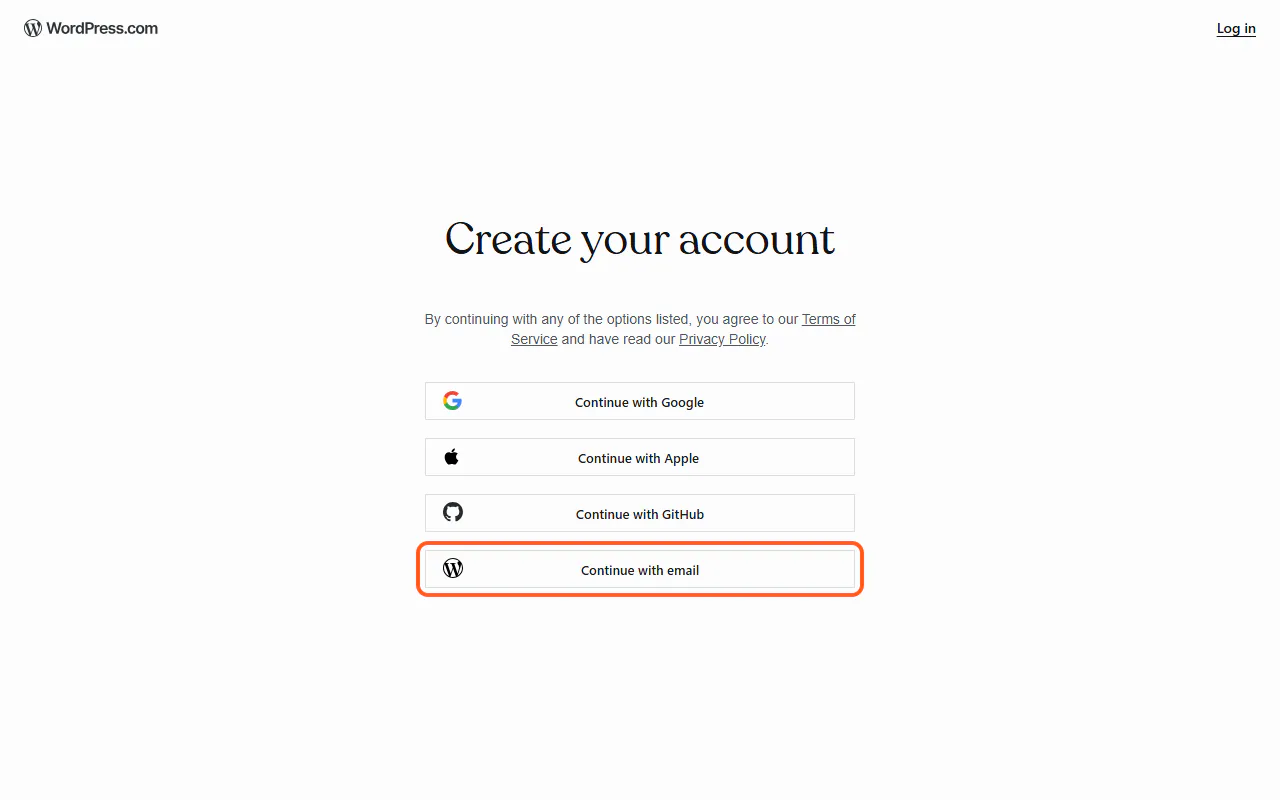
Go to wordpress.com and click Get started. On the "Create your account" screen, choose Continue with Google, Apple, GitHub or email. We used email: enter your address, then follow the link WordPress.com sends you.
Use an email address you check. WordPress.com sends your contact form messages there.
-
Step 2: Skip the paid domain and keep a free address
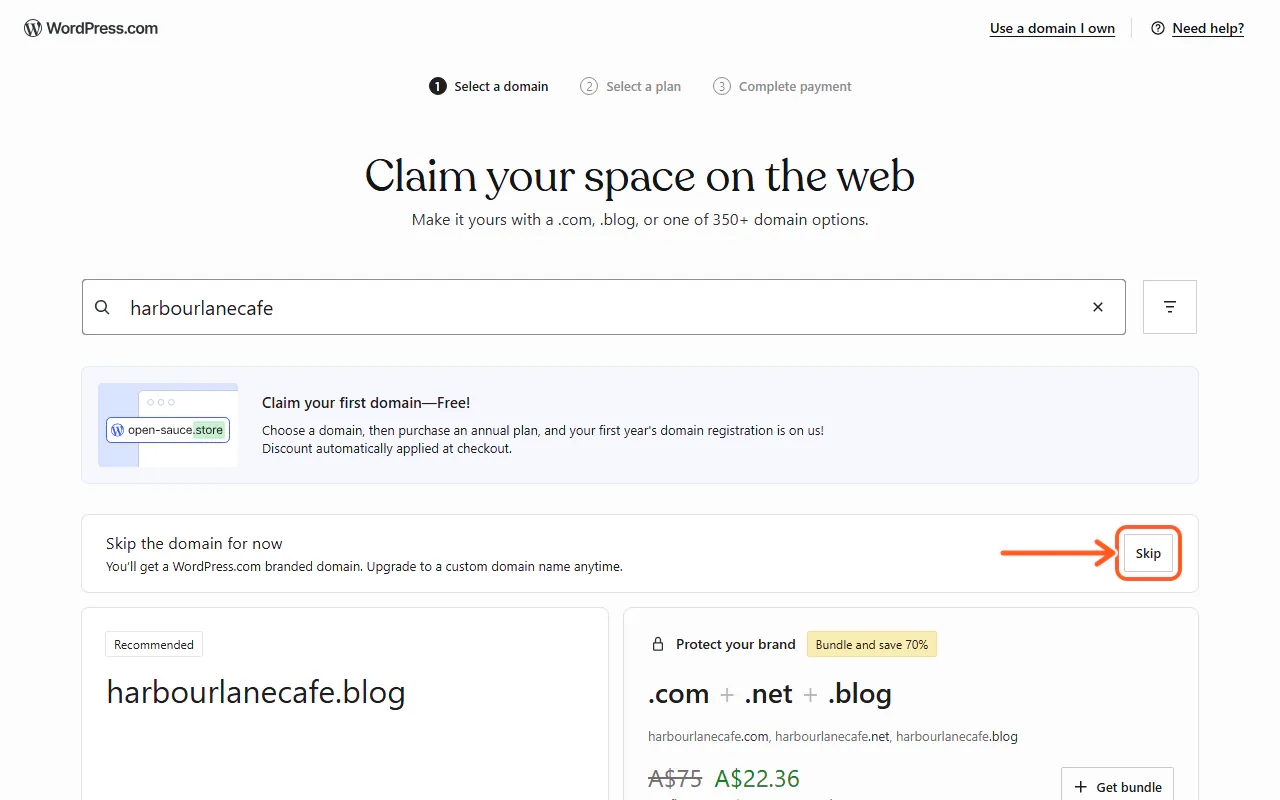
WordPress.com asks you to search for a domain. Type your business or site name to see what's available. Every result costs money (on the day we checked, a .com was A$20 a year after a free first year, and only with a yearly plan).
To stay free, click Skip next to "Skip the domain for now". Your site gets a free address such as harbourlanecafe.wordpress.com, based on the name you searched. You can add a custom domain later.
-
Step 3: Choose the Free plan
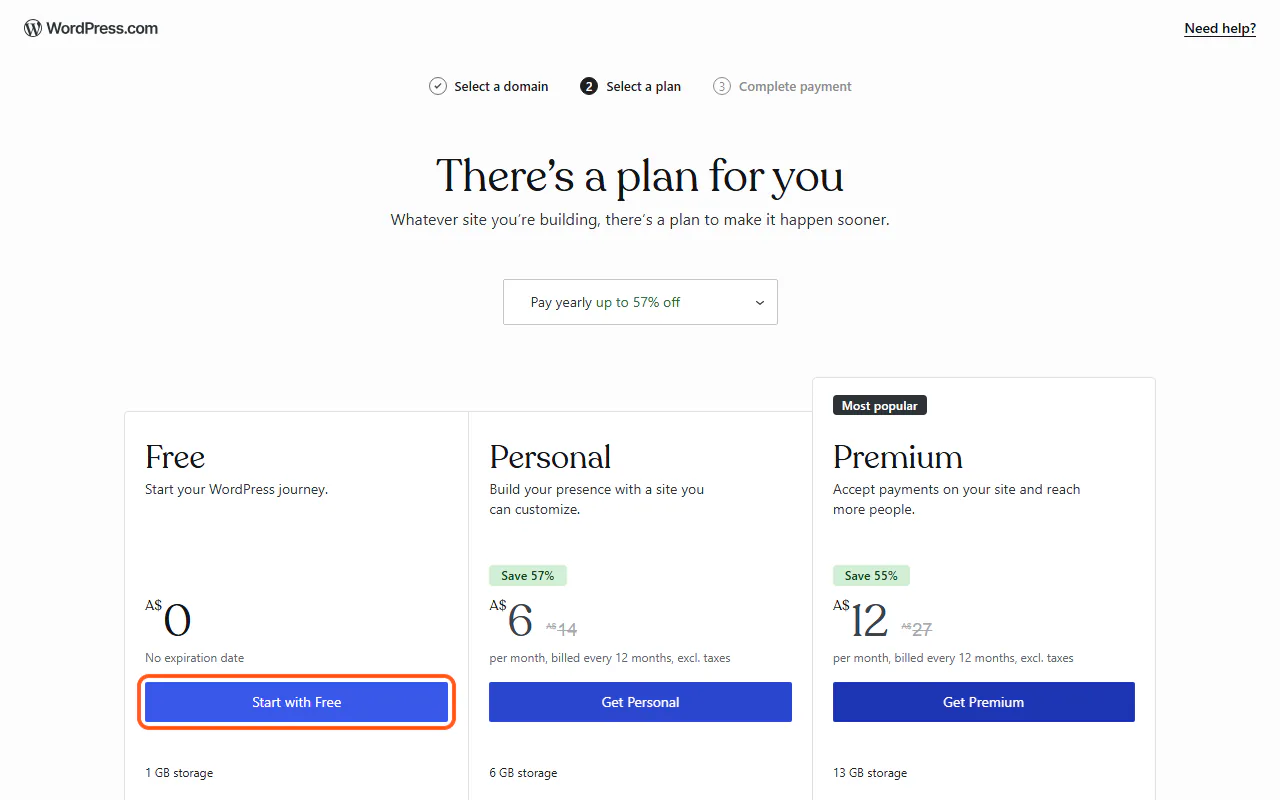
Next you see the plans. The Free plan costs A$0 with no expiry date. Personal and Premium are shown at their yearly-billing price per month; prices on this screen exclude tax, so GST is added for Australian customers.
Click Start with Free. WordPress.com creates your site straight away and opens it.
-
Step 4: Tell WordPress.com about your site
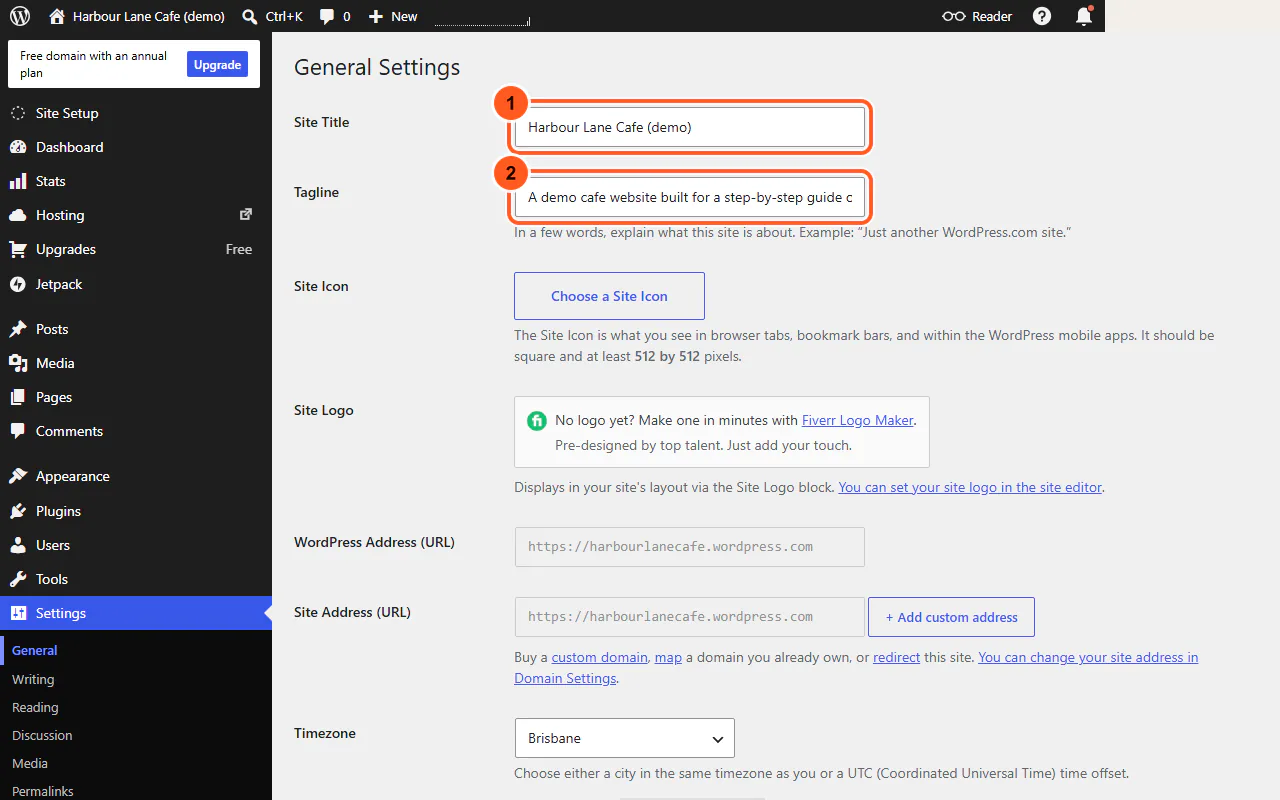
A short setup window asks for your main goal (choose Build a website), then a site name and a brief description. These become your site title and tagline. Click Finish to see a launch checklist.
You can change both at any time in Settings, General. That screen also has the Timezone setting: check it shows your city (ours picked up Brisbane automatically) so form messages and posts show the right time.
-
Step 5: Pick a free theme
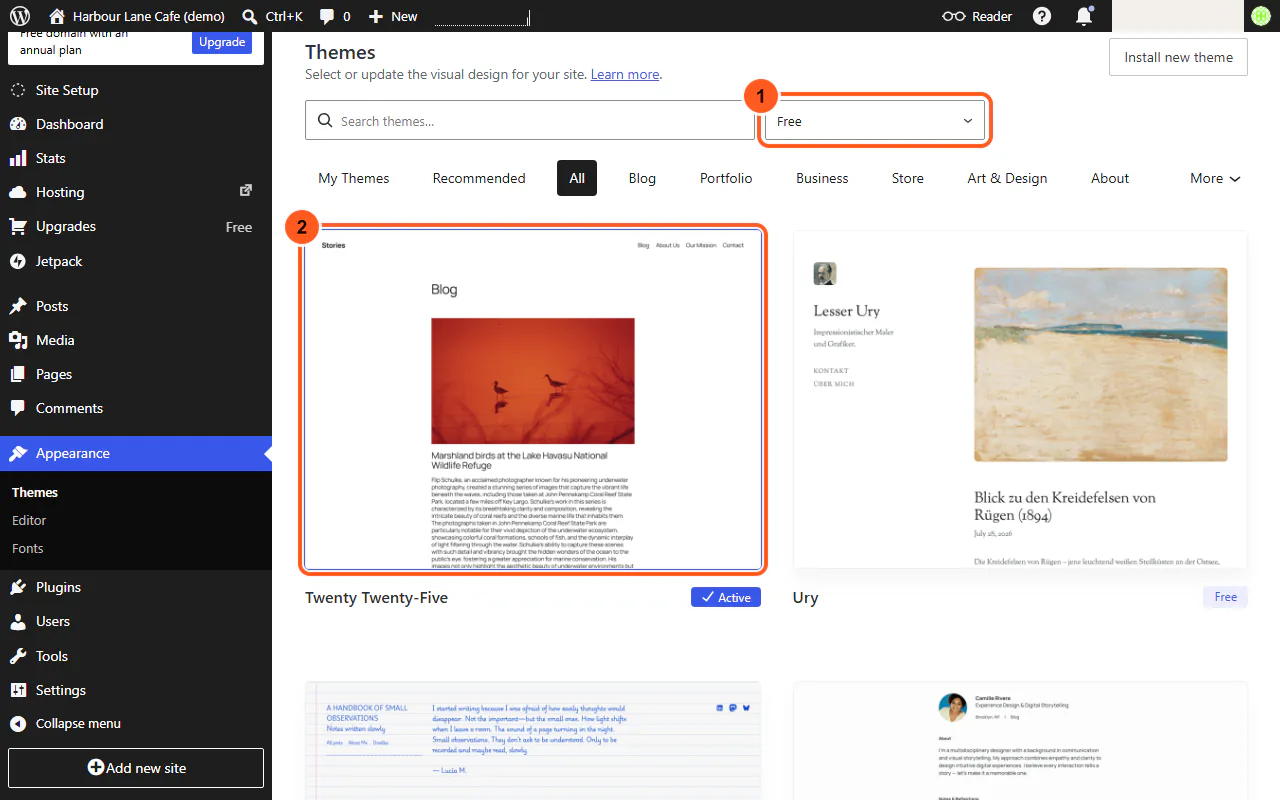
The theme sets your site's look. In the checklist click Browse themes, or go to Appearance, Themes. Many themes say "Available on Personal", which means you'd need a paid plan.
Set the price filter at the top to Free to see only the themes you can use now. We chose Twenty Twenty-Five, WordPress's own default theme: it's simple, works well on phones and isn't going anywhere.
-
Step 6: Activate the theme
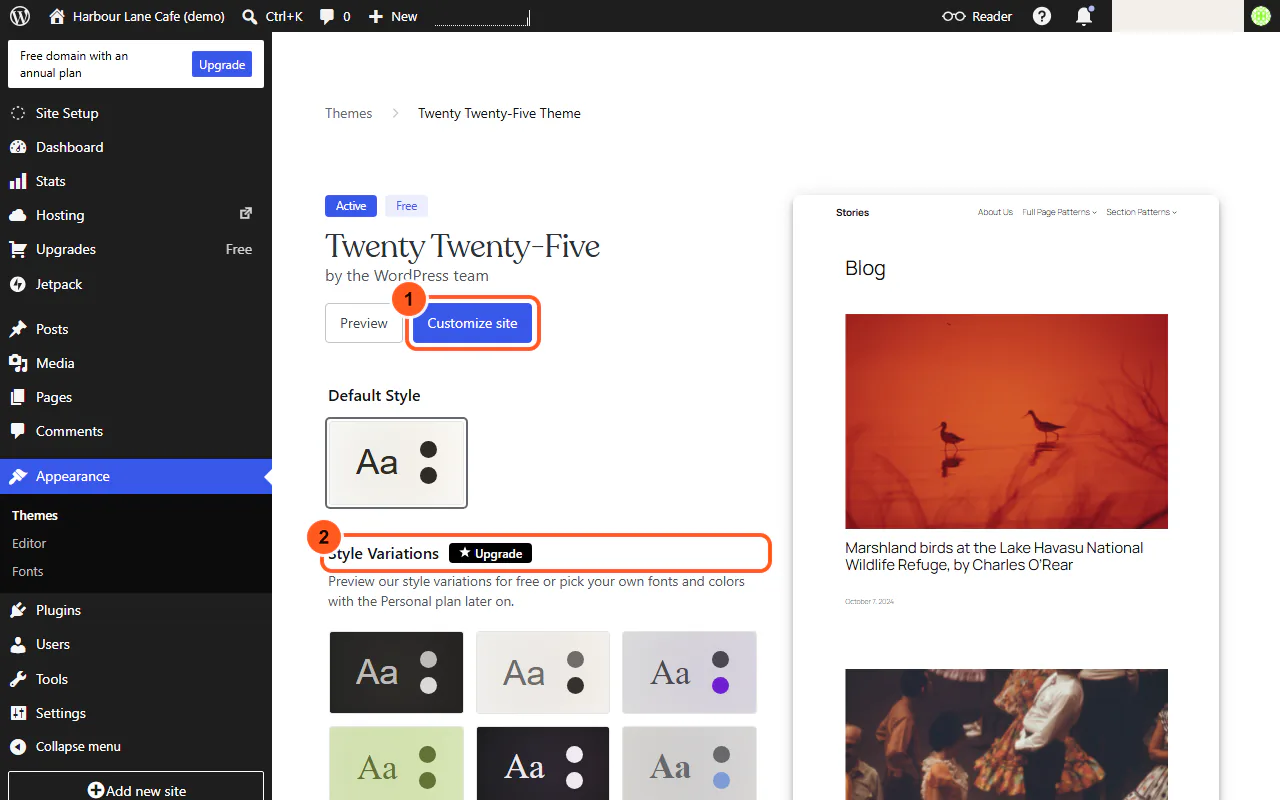
Click the theme to open its page, then click Activate. When it's live, the button changes to Customize site.
Note the Upgrade badge next to Style Variations. On the Free plan you can preview a theme's other colour and font styles, but keeping one (or picking your own fonts and colours) needs the Personal plan. The default style is free.
-
Step 7: Start your home page from a pattern
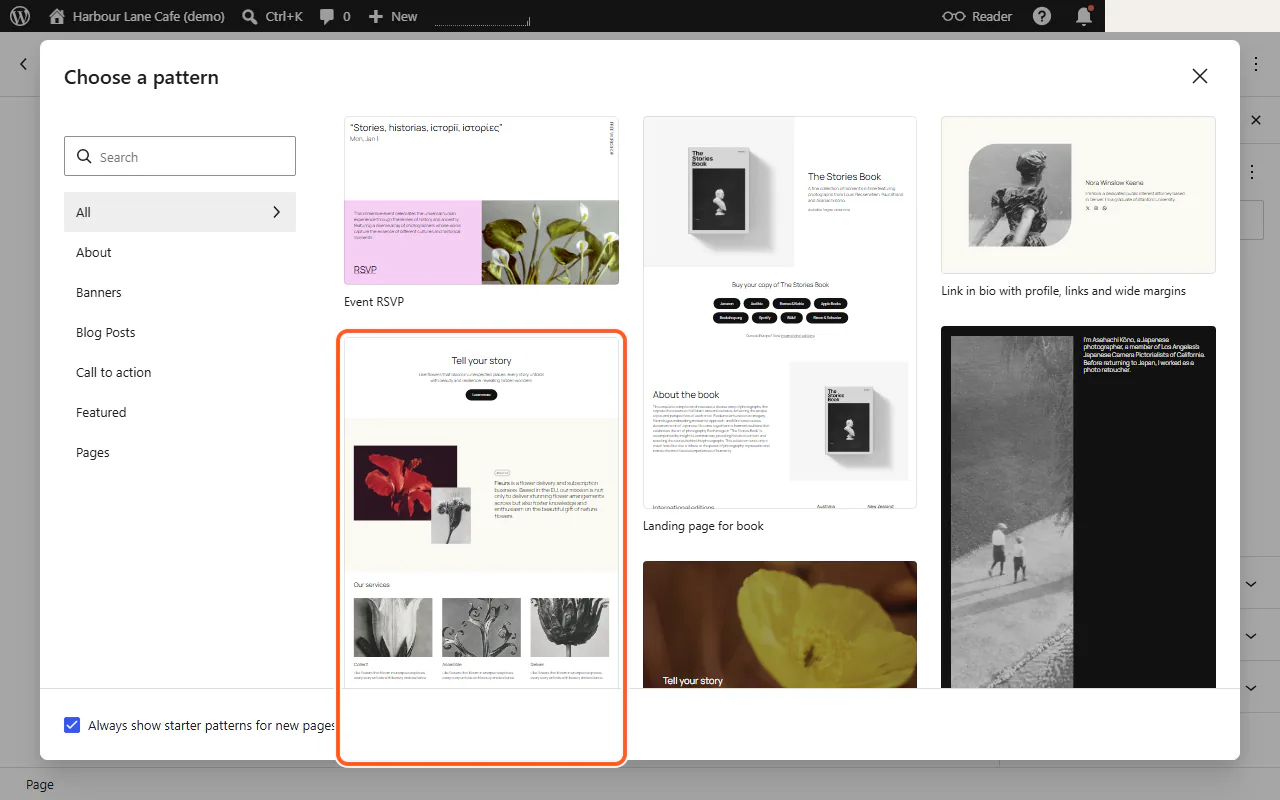
Out of the box, your front page lists blog posts. Most small business sites want a proper home page instead, so make one: go to Pages, Add Page.
A "Choose a pattern" window opens with ready-made layouts. We picked Business homepage. It drops in a heading, an intro, an About section and a three-column services section that you then edit.
-
Step 8: Edit your home page and publish it
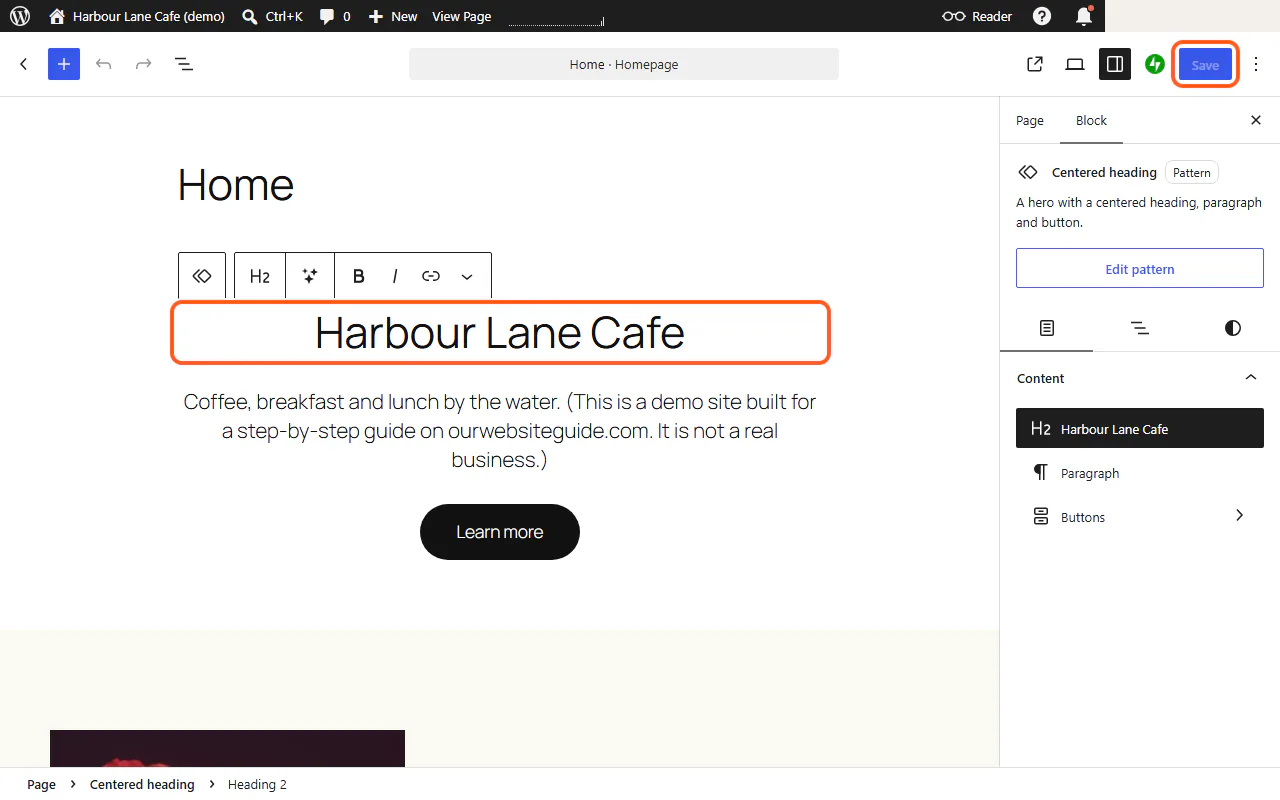
Give the page the title Home. Then click any text to replace it with your own words. To remove a section you don't need, click it, open the three-dot menu in its toolbar and choose Delete. We deleted the pattern's sample testimonial and pricing sections: don't publish example reviews or prices as if they were yours.
Click Publish, then Publish again to confirm. Until you launch (step 12), WordPress.com tells you the page is live but the site is set to Coming Soon. Later edits use the Save button.
-
Step 9: Make it your homepage
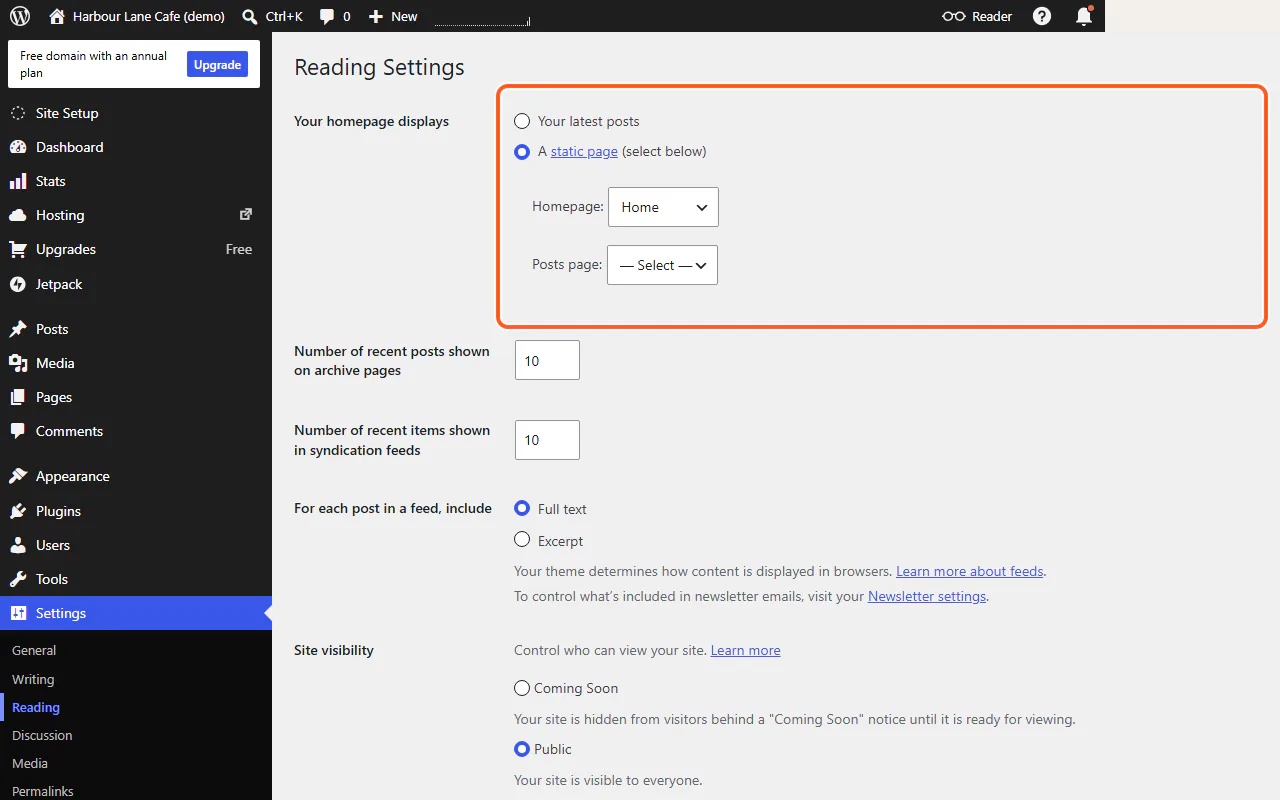
Go to Settings, Reading. Under "Your homepage displays", choose A static page, set Homepage to Home and click Save Changes.
There's a shortcut too: in Pages, hover over your page and click Set as homepage.
-
Step 10: Add About and Contact pages
WordPress.com already made an About page for you with sample text. Open it from Pages and replace the text with a few sentences about you or your business.
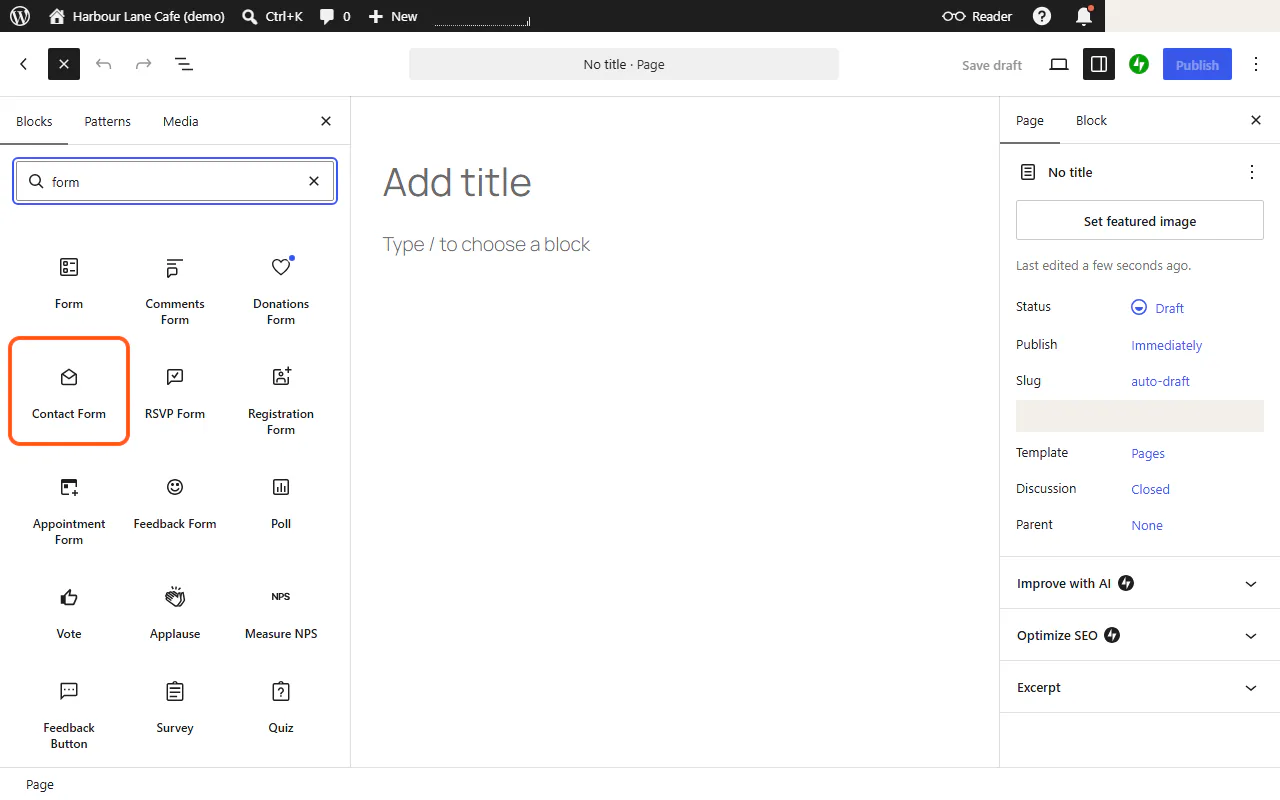
For the Contact page, add a new page, close the pattern window and give it the title Contact. Click the blue + button at the top left, search for "form" and choose Contact Form. You get Name, Email and Message fields and a button, free. Messages go to your account email. Publish the page.
-
Step 11: Put Home first in the menu
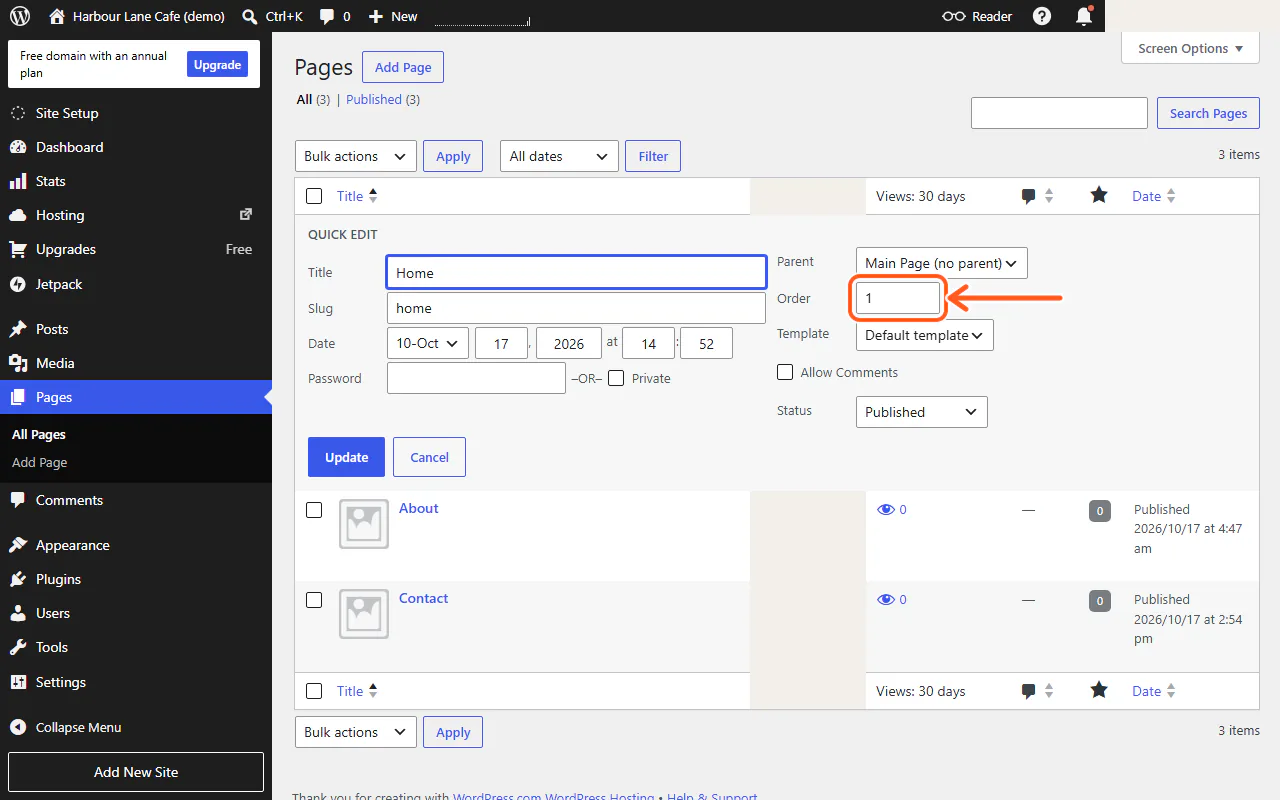
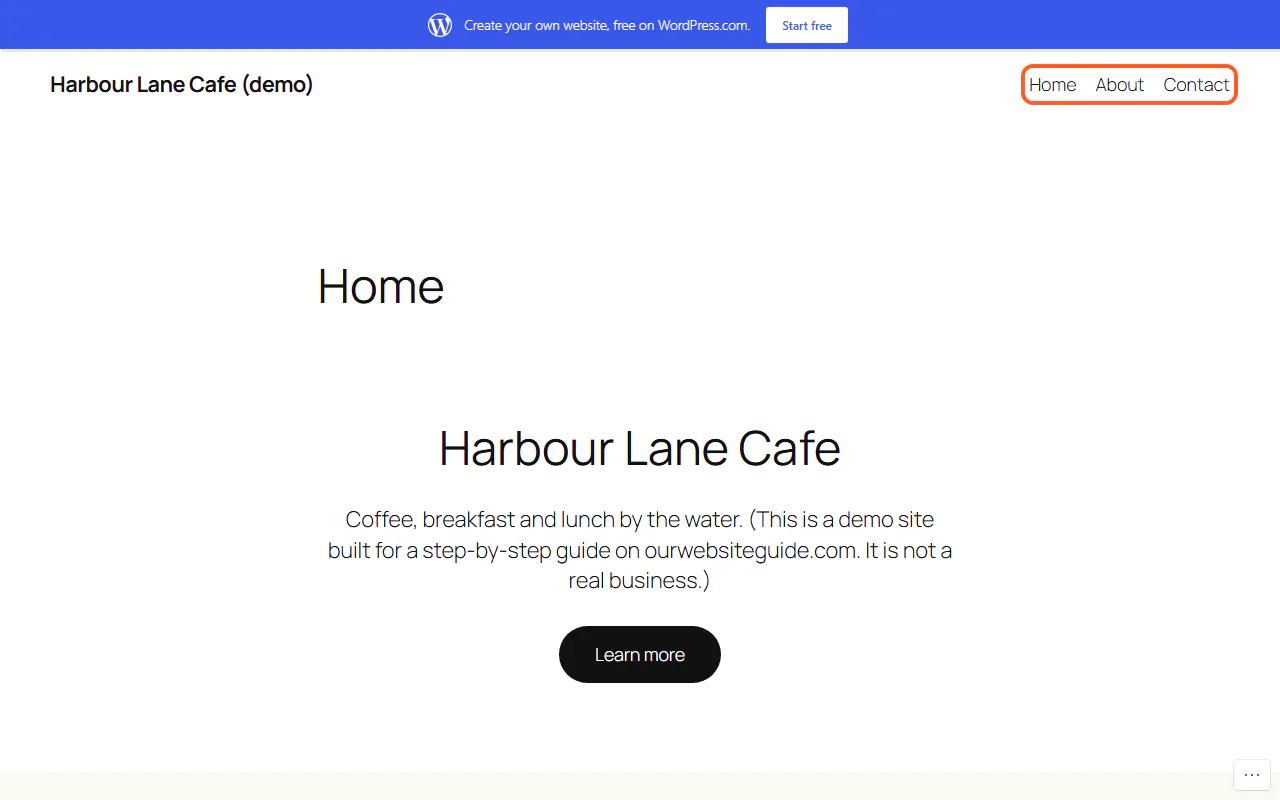
Twenty Twenty-Five adds every published page to the top menu automatically, in alphabetical order, so Home ends up last.
To change the order, go to Pages, hover over Home and click Quick Edit. Set Order to 1 and click Update. Give About 2 and Contact 3. The menu now reads Home, About, Contact.
-
Step 12: Launch your site on the Free plan
Until you launch, only you can see the site. Click Launch site in the top bar. WordPress.com offers a domain first: click Skip purchase to keep your free address.
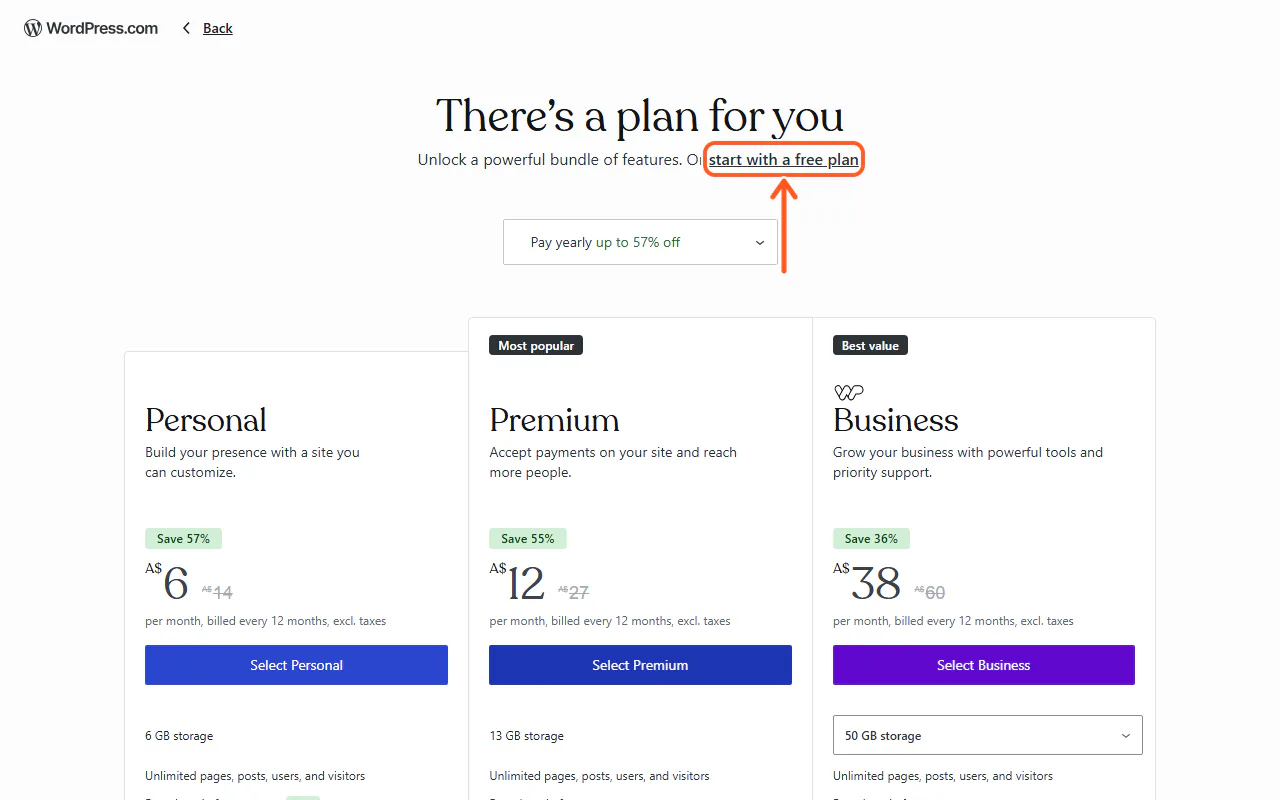
The next screen shows only paid plans. The free option is the small underlined link "start with a free plan" in the line under the heading. Click it and your site goes public straight away.
-
Step 13: Check your live site
Open your address (ours is harbourlanecafe.wordpress.com) in a private browser window to see it as a visitor does. On the Free plan, a blue WordPress.com bar across the top invites visitors to make their own site.
Send the Contact form a test message to make sure it reaches your inbox.
Comparison
| Plan | Paid yearly | Paid monthly | What you get over the plan before |
|---|---|---|---|
| Free | A$0 | A$0 | yourname.wordpress.com address, 1 GB storage, free themes, contact form. Visitors see a WordPress.com bar. |
| Personal | A$6 | A$14 | 6 GB storage, a free domain for the first year, no ads for visitors, all premium themes and style options, plugins. |
| Premium | A$12 | A$27 | 13 GB storage, premium stats, payment buttons and video uploads. |
| Business | A$38 | A$60 | 50 GB storage, priority 24/7 support, backups, business email for the first year and developer tools. |
Troubleshooting
I can't find the free plan when I click Launch site
The launch screen only shows paid plans as boxes. Look for the underlined link "start with a free plan" in the sentence under the heading "There's a plan for you".
My homepage still shows blog posts
Go to Settings, Reading, choose "A static page", set Homepage to your Home page and click Save Changes. Or hover over the page in Pages and click Set as homepage.
Home is last in my menu
The theme lists pages alphabetically. In Pages, use Quick Edit on each page and set Order (1 for Home, 2 for About, 3 for Contact).
My footer has links I didn't add (Blog, FAQs, Shop and so on)
These are Twenty Twenty-Five's sample footer links. Go to Appearance, Editor, open Patterns and find the Footer template part, then change or delete the links.
Visitors see a Coming Soon page
The site isn't launched yet. Click Launch site in the top bar and follow step 12. You can also check Settings, Reading, Site visibility: it should say Public.
Contact form messages aren't arriving
They go to the email address on your WordPress.com account. Check your spam folder, then look under Jetpack, Forms in the dashboard, where every message is also saved.
Frequently asked questions
Is WordPress.com really free?
Yes. The Free plan cost A$0 with no expiry date when we checked on 17 October 2026. You get a yourname.wordpress.com address and free themes. A custom domain, premium themes and style options, and removing ads need a paid plan.
Can I use a .com.au domain with WordPress.com?
WordPress.com doesn't sell .com.au domains and can't transfer them in. When we searched, it offered to connect a .com.au you've registered elsewhere instead, which it says takes a few hours. Register the domain with an Australian registrar first (you'll need an ABN or other Australian connection), then use "Use a domain I own".
Are WordPress.com prices in Australian dollars?
Yes, WordPress.com showed us prices in AUD. They exclude tax, so expect GST to be added at checkout. Yearly billing is much cheaper per month than paying monthly.
What's the difference between WordPress.com and WordPress.org?
WordPress.com is a hosted service: WordPress runs it for you, and you choose a plan. WordPress.org is the free software you install on your own web hosting, which gives you full control but means you look after hosting, updates and backups yourself.
Can I move my site off WordPress.com later?
Yes. Tools, Export lets you download your content, which you can import into a self-hosted WordPress site.