How to Make a Website with Canva: Free Step-by-Step Guide
Disclosure: Some links in this guide are affiliate links. If you buy through them we may earn a commission, at no extra cost to you. We only link to tools we use in the guide. How we make money.
On this page
The short answer
- What you'll build
- A simple two-page website (Home and Contact) with a menu, made from a free Canva template, on a free yourname.my.canva.site address.
- Time
- About 45 minutes
- Cost
- Free with Canva Free. Using your own domain needs Canva Pro, listed at A$165 a year for one person on canva.com/pricing on 17 October 2026.
What you'll need
- A Canva account Canva Free is enough for everything in this guide. Sign up at canva.com with an email address or another account.
- Your text and photos Your business name, a headline, a few lines about what you do and how to reach you. You can keep the template's illustrations to start.
- Your own domain (optional) Connecting a domain you already own, such as a .com.au, needs Canva Pro. The free my.canva.site address costs nothing.
Canva is best known for social posts and flyers, but it can also publish a simple website straight from a design. If your site only needs to tell people who you are, what you offer and how to reach you, it’s one of the quickest ways to get online, and it’s free to start.
We worked through every step in a real Canva account on the Free plan, building a made-up cafe from a free template, and took every screenshot from it.
Step by step
-
Step 1: Start a new website design
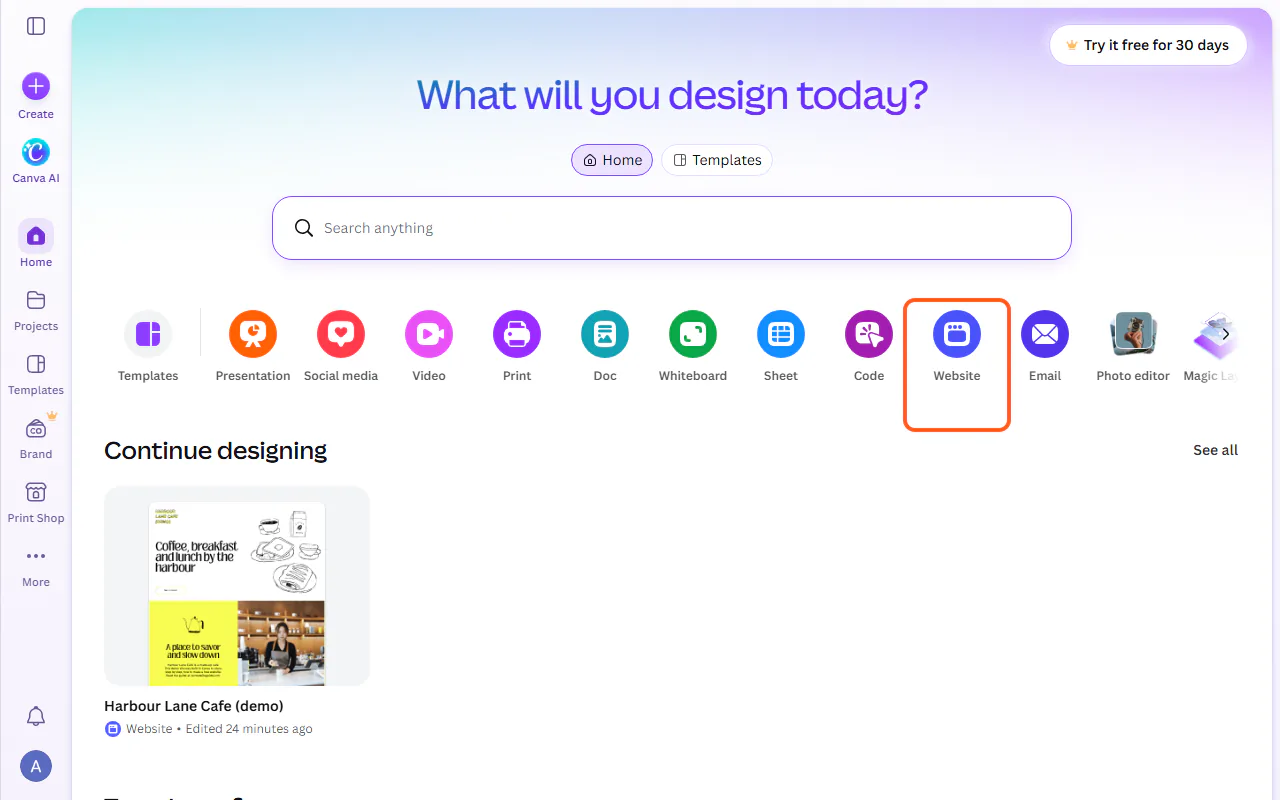
Log in to canva.com. On the home page, under "What will you design today?", click Website. Canva opens a blank website in the editor in a new tab.
Each page in the editor becomes a page of your website with its own address. In our demo, the Contact page would live at /contact on the site address.
-
Step 2: Pick a free template
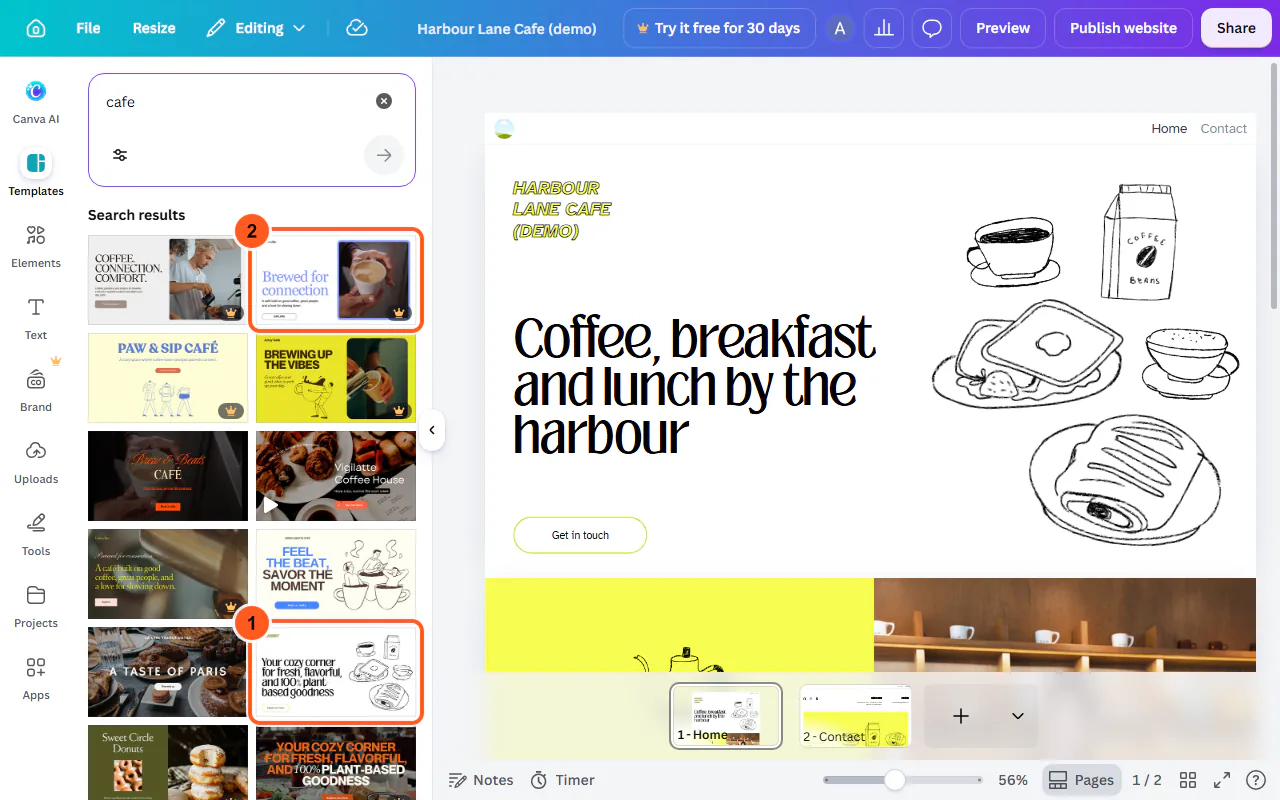
The Templates panel opens on the left. Type what your site is about (we searched "cafe") and press Enter.
Templates with a small crown in the corner are Pro templates, part of Canva's paid plan. Canva had no "free only" filter here, so pick one without a crown. We chose a yellow, hand-drawn cafe template.
-
Step 3: Apply the template
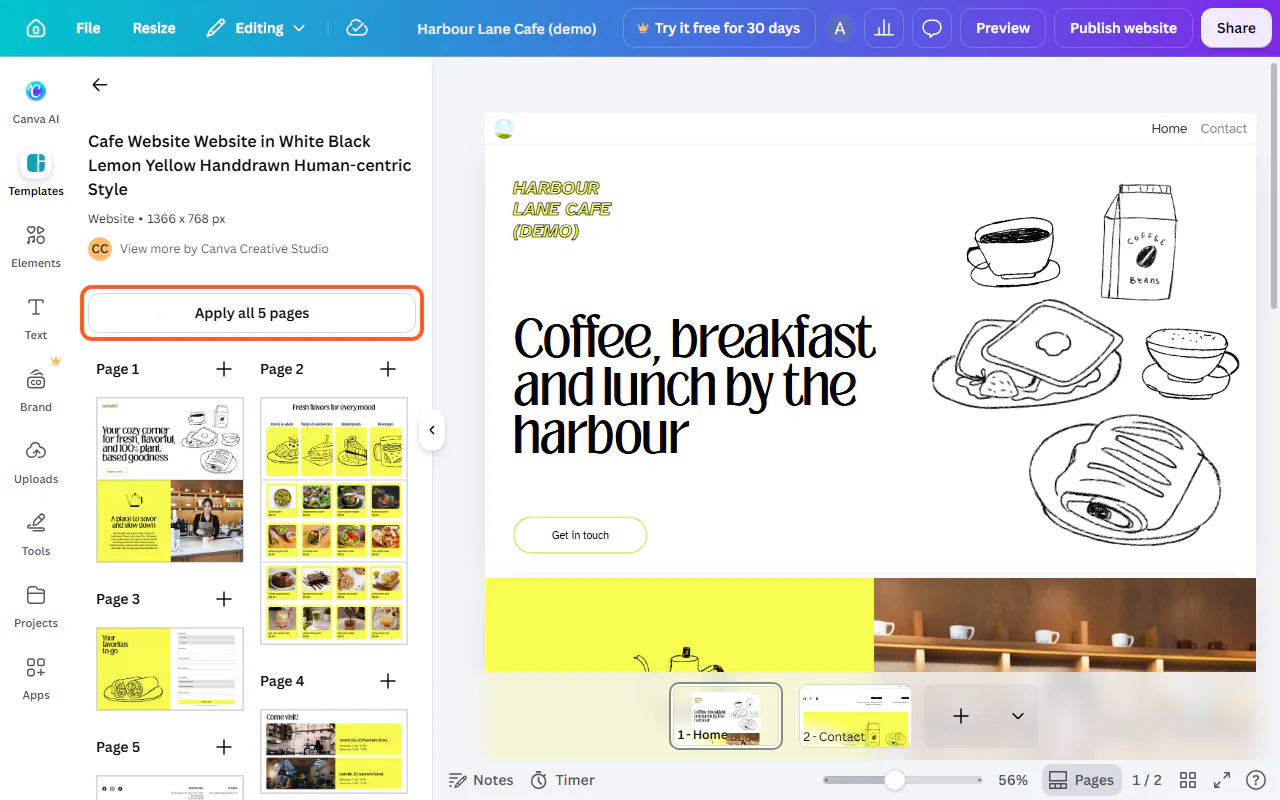
Clicking a template shows its pages. Ours had five: a home page, a menu, an order form, opening hours and a contact page.
Click Apply all 5 pages (the number depends on the template). You can delete the pages you don't need in a moment.
-
Step 4: Replace the text with your own
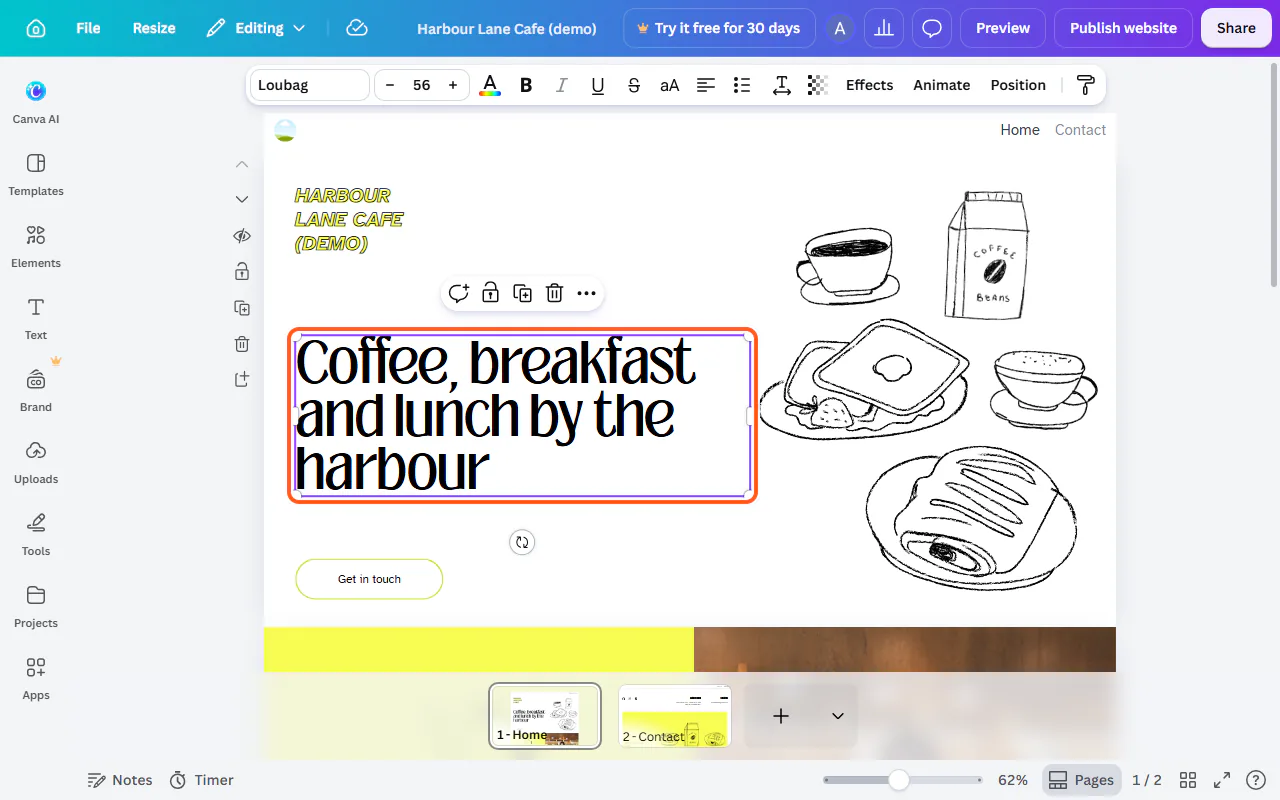
Double-click any text on the canvas to edit it, select the old words and type your own. Start with the business name (ours said HARVEST) and the main headline. A toolbar appears above the canvas for font, size and colour.
Templates are full of sample details: made-up addresses, phone numbers, prices and opening hours. Replace or delete every one before you publish. Click the design's name at the top to rename it too: Canva uses it as your site's title.
-
Step 5: Remove the pages you don't need
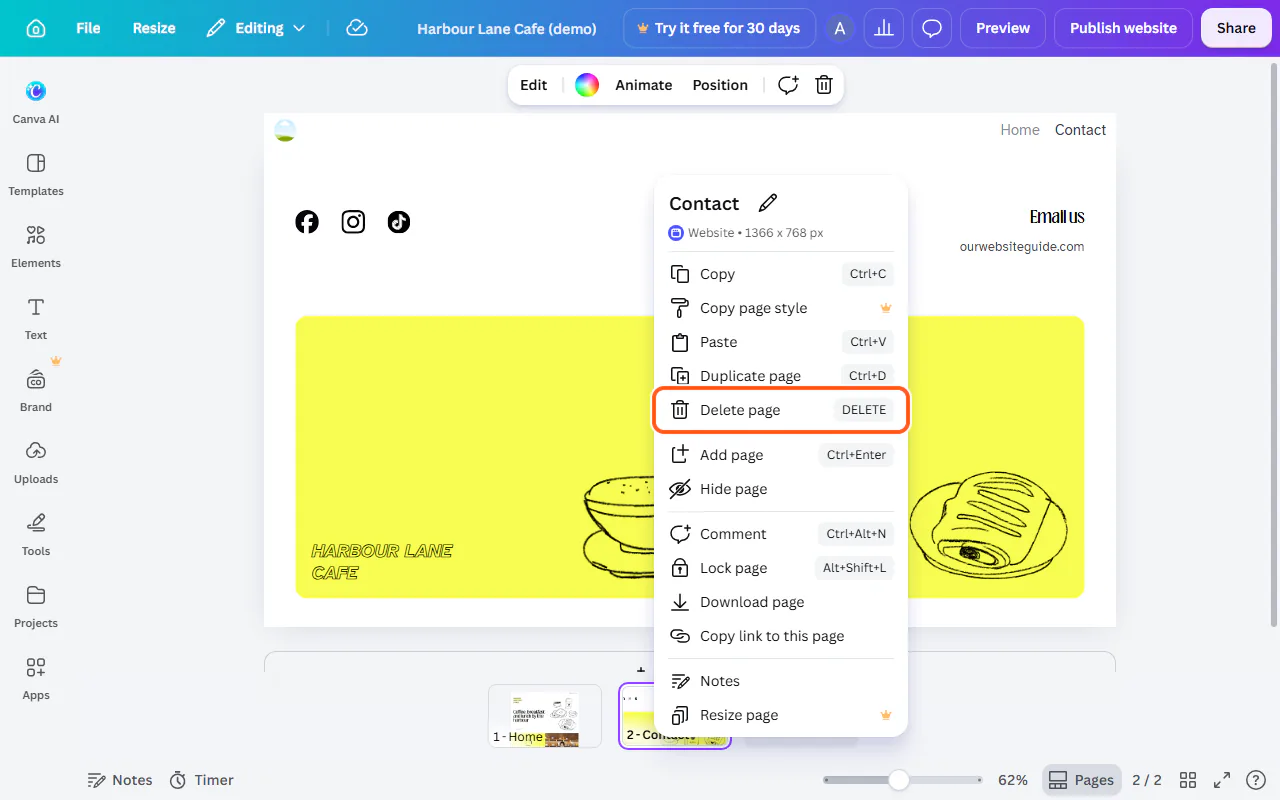
If the page thumbnails aren't showing under the canvas, click Pages at the bottom of the screen. Right-click a thumbnail and choose Delete page.
We kept just Home and Contact. A short site that's accurate is better than a long one with sample menus and prices that aren't yours.
-
Step 6: Turn on search and the menu
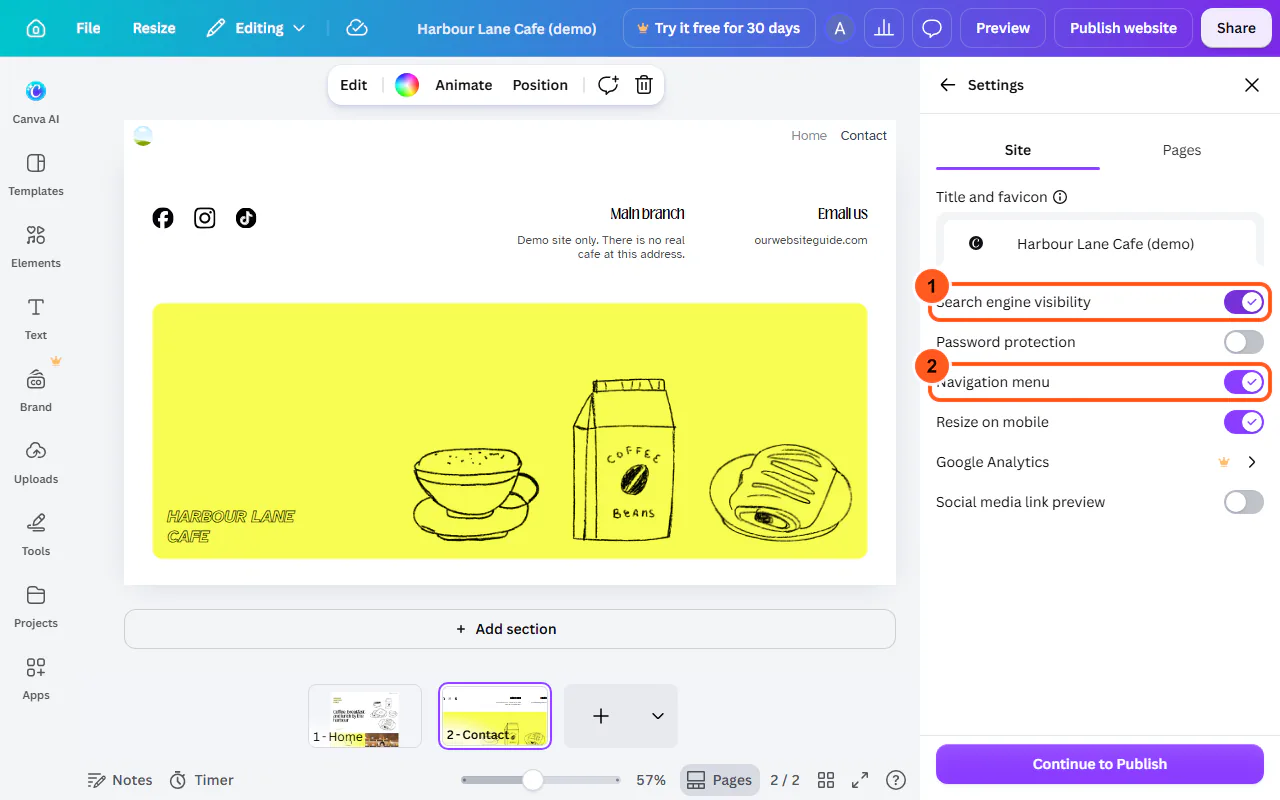
Click Publish website (top right), then Settings. Two switches start off and matter for most sites. Search engine visibility lets Google and other search engines list your site. Navigation menu adds a menu bar with a link to each page.
In our test, Navigation menu stayed on, but Search engine visibility switched itself back off when we left without publishing. Turn it on as the last thing before you publish, and check it again whenever you republish. Google Analytics in this list needs Canva Pro.
-
Step 7: Give each page a title and description
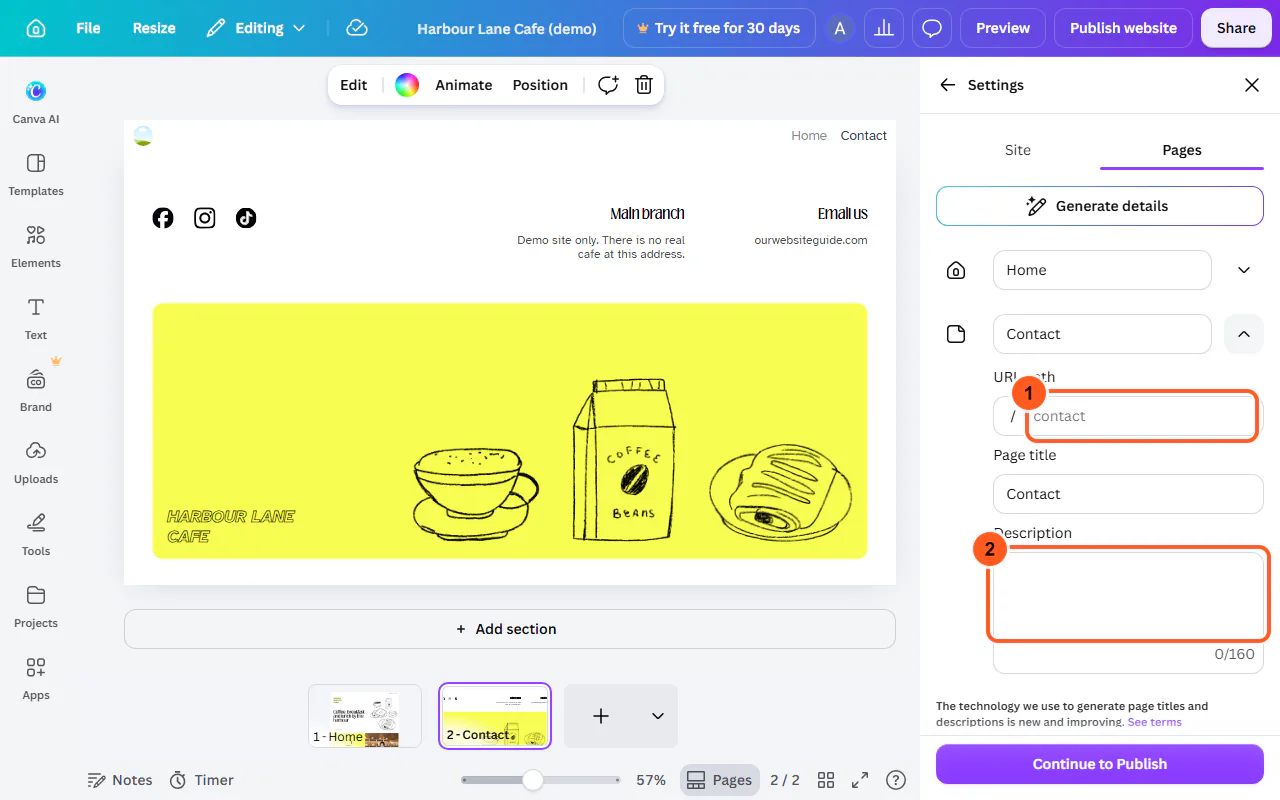
Still in Settings, open the Pages tab. Each page has a name; click the arrow beside it to see its URL path, Page title and Description. These are what Google shows in search results.
Write a short description for each page (up to 160 characters) that says what's on it, such as "Contact Harbour Lane Cafe for bookings and catering". Generate details can draft them for you, but check the wording before you publish.
-
Step 8: Choose your free address
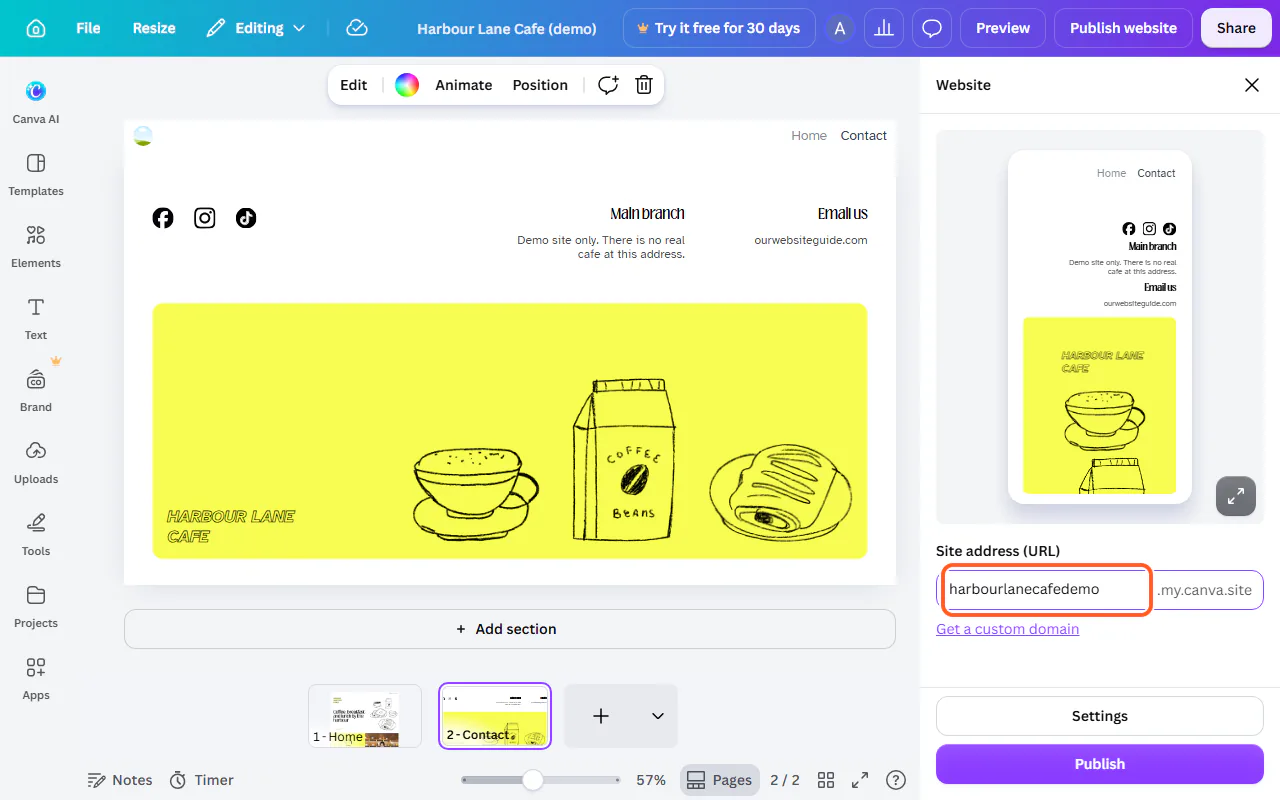
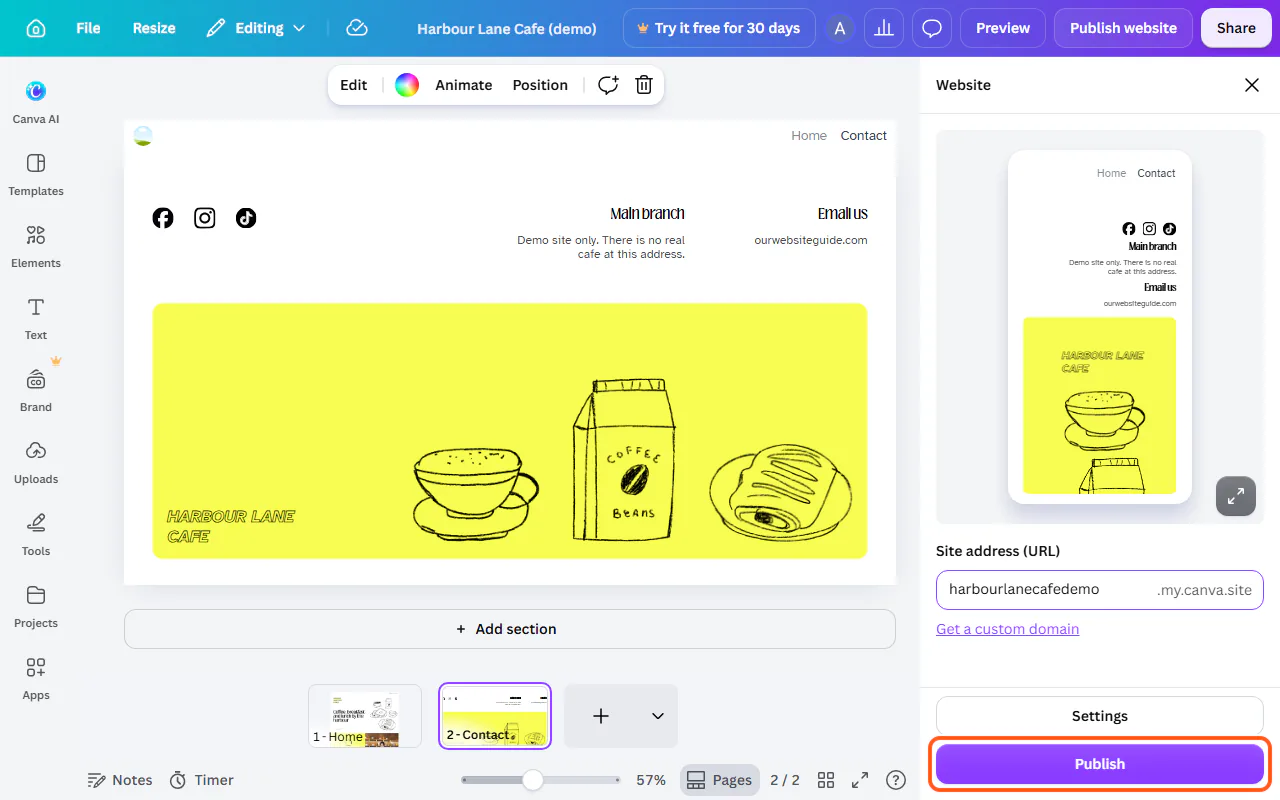
Click the back arrow at the top of Settings to return to the Publish panel. Under Site address (URL), type the first part of your address. It ends in .my.canva.site, so ours would be harbourlanecafedemo.my.canva.site.
Keep it short and close to your business name. Canva shows a phone preview of your site above the address so you can check the mobile layout.
-
Step 9: Know your domain options
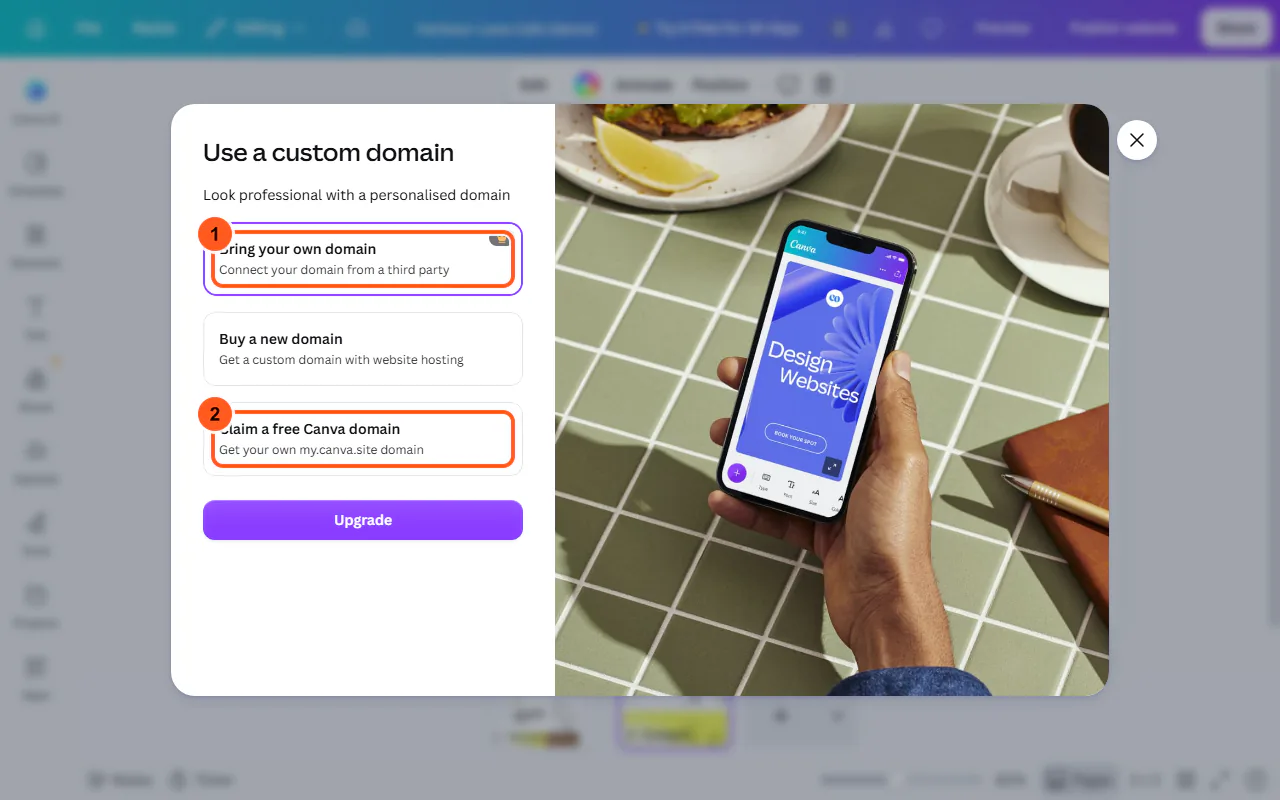
Click Get a custom domain to see the choices. Bring your own domain (to connect one you already own, like a .com.au) has a Pro crown. Claim a free Canva domain is the my.canva.site address from the last step. Canva also offers to sell you a new domain.
If you want a .com.au on Canva, you'll need Canva Pro plus a .com.au registered with an Australian registrar. For a first site, the free address is fine: you can add a domain later.
-
Step 10: Publish your site
Close the domain window, check your address once more and click Publish. Your site goes online at your my.canva.site address.
We stopped before this click: our made-up demo cafe isn't a real business, so we didn't put it online.
Comparison
| Canva Free | Canva Pro | |
|---|---|---|
| Price | A$0 | A$165 a year for one person |
| Free my.canva.site address | Yes | Yes |
| Connect your own domain (e.g. .com.au) | No (Pro only) | Yes |
| Templates | Free templates (no crown) | Free and Pro templates |
| Google Analytics on your site | No (Pro only) | Yes |
| Search engine visibility and navigation menu | Yes | Yes |
Troubleshooting
My site doesn't show up on Google
Open Publish website, then Settings, and check Search engine visibility is on, then publish again. New sites can take a few weeks to appear in search results.
Search engine visibility keeps switching off
In our test it only stayed on once the site was published. Turn it on immediately before you click Publish.
There's no menu on my published site
Turn on Navigation menu in Publish website, Settings, then publish again. Canva builds the menu from your page names.
My page shows the wrong title in Google
Open Publish website, Settings, Pages, then the arrow beside the page, and edit its Page title and Description. Publish again; Google updates its listing the next time it visits.
Frequently asked questions
Is a Canva website free?
Yes, on Canva Free you can make a website from a free template and use a free my.canva.site address. Connecting your own domain and using Pro templates need Canva Pro, listed at A$165 a year for one person on 17 October 2026.
Can I use a .com.au domain with Canva?
Connecting a domain you own (Bring your own domain) needed Canva Pro when we checked. Register the .com.au with an Australian registrar first (you'll need an ABN or another Australian connection), then connect it from Get a custom domain.
Is a Canva website good for a business?
It's a good fit for a simple site: a cafe, a tradie, an event or a portfolio. It's not built for blogs or online shops, where WordPress, Wix or Squarespace give you more.
Can a Canva website have more than one page?
Yes. Each page in the editor becomes a page of the site with its own URL path, page title and description (in Publish website, Settings, Pages). Turn on Navigation menu to link them.
Does my Canva website work on phones?
Resize on mobile is on by default in Publish website, Settings, and the publish panel shows a phone preview. Check it there before you publish.